Posts for: #CD and DVD

Abiword – multi platform word processor

After a recent exchange of ideas about Abiword on identi.ca, I decided to take a closer look at it again. Although OpenOffice is currently my office suite of choice, it is a bit bloated and slow. So, what does Abiword have to offer?

abiword1

  • It is blazing fast;
  • works in Windows and Linux;
  • has all the main text editing and formatting functions one needs;
  • saves and imports documents in multiple formats (Abiword’s own formats, .doc, .odf, .html, .rtf, .pdf, .docx, LaTeX, Kword and xml);
  • has revision control;
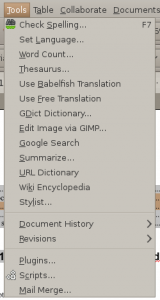
  • has spell checker and thesaurus built-in;
  • and, has a plug-in architecture to improve its list of features even more!
abiword-tools

[Read more]

Immediate song preview in Gnome [Linux]

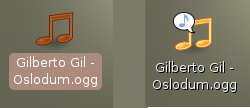
If you’re using Linux with Gnome, do a mouseover the music file and you’ll start hearing the song immediately.

song-preview

You don’t even need to double-click to open the file in a media player, not even a mouse click is needed. Nice little hidden secrets of an awesome desktop file manager.

[Read more]

rip CDs with CDex

[Windows] If you want to store your CDs into your hard drive, you can start ripping them using CDex. I always like to convert my audio CDs into files so I can listen to the songs easily on my mp3 player and even to guarantee I’ll always have a copy in hand if I lend the CD to someone or it gets lost somewhere around the house.

CDex streamlines well this process by extracting the audio from the CD and converting it automatically to mp3, ogg, or WAV formats while storing ID3 tags. Besides these main tasks, the software has even more features.

[Read more]

rip DVDs with Handbrake

Handbrake logoWant to take your DVD and watch it on your iPod, PDA, smartphone, or just build a movie collection inside your computer? Simple and easy it is with Handbrake, a multi-platform (Windows, Linux, and MacOS X) DVD to mpeg-4 converter.
Handbrake will allow you to extract video, audio, and subtitles of the DVD. The output formats (containers) are: MP4, MKV, AVI, and OGM. It uses mpeg-4 and H.264 video encoders and AAC, mp3, and vorbis as audio encoders.

[Read more]

Play pretty much any video file with VLC

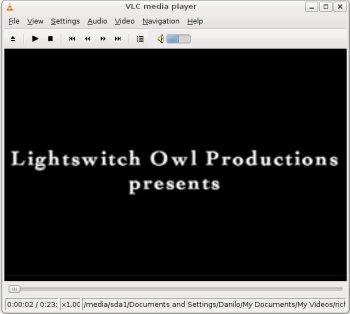
VLC, in my opinion, is one of those programs that needs to be installed on every machine. I mean, on every machine you’d like to watch movies on. Which is easy because it works on Windows, Mac OSX, and Linux.

VLC

This program plays pretty much any video format you want, and audio files but it isn’t the perfect choice for your music management app. You can easily play a DVD, VCD, SVCD, AVI, OGG, MKV, MOV, 3GP, FLAC, FLV, and much more. It doesn’t play Real’s format since it is proprietary and Apple must be keeping it a tight secret.

[Read more]

Burn CDs, DVDs open source style with Infra Recorder

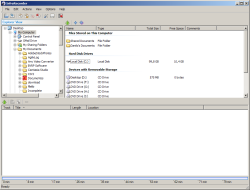
Infra Recorder is a very good software that I use to burn CDs and DVDs on my Windows machine. I’ve used it to burn data CD/DVDs, and work with iso files. Which means, bye bye proprietary Nero. According to the site, its full features are:

InfraRecorder
  • Create custom data, audio and mixed-mode projects and record them to physical discs as well as disc images.
  • Supports recording to dual-layer DVDs.
  • Blank (erase) rewritable discs using four different methods.
  • Record disc images (ISO and BIN/CUE).
  • Create disc copies, on the fly and using a temporary disc image.
  • Import session data from multi-session discs and add more sessions to them.
  • Save audio and data tracks to files (.wav, .wma, .ogg, .mp3 and .iso).

This program is a Windows only. Sorry, I usually try to find cross-platform programs but I wasn’t able find one for this category.

[Read more]

Burn your video DVDs with open source

DVD Flick logoWant to burn a movie DVD with files from your computer? Do it ever so easily with DVD Flick. I’ve yet to find another program that is better and easier to use then DVD Flick.

You can even add subtitles (and edit its appearance), add different audio tracks, and adjust some other settings of your DVD project. The process really couldn’t be easier.

For a simple burn just select the file and click on “Create DVD”. Under 1 minute’s worth of effort and then you can just wait (a couple of hours) for the project to be completed all by itself. If you want to modify some settings – I always choose to burn directly to the DVD for example – you can easily do it.

[Read more]